
Table of Contents
- Signs That a Computer Is Running Too Slowly
- Common Causes Behind Poor Performance
- Quick Checks to Find the Problem
- Simple Software Fixes to Try First
- When a Hardware Upgrade May Help
- How Malware and Unsafe Downloads Affect Speed
- Repair, Upgrade, or Replace?
- Ways to Keep a Computer Running Well
A slow computer can disrupt work, school, communication, and everyday errands. For households and small businesses in Pinellas County, Florida, the right response is usually to identify the cause before spending money on a replacement. In many cases, a basic cleanup, security check, or computer repair assessment can clarify whether the problem is minor or whether a component is beginning to fail.
Heat, dust, frequent travel, and years of accumulated files can all contribute to a device that no longer feels responsive. Still, age alone does not explain every slowdown. A computer that becomes sluggish suddenly may have a software conflict, a full drive, an unwanted program, or an update running in the background. A gradual decline may point to limited memory, aging storage, or too many applications starting automatically.
Signs That a Computer Is Running Too Slowly
Typical warning signs include slow startup times, lag when typing, frozen programs, browser tabs that stop responding, unexpected restarts, and fans that get loud during simple tasks. Slow web browsing can be misleading, too. If other devices on the same network are working normally, the problem is more likely to be the computer than the internet connection, and professional computer services can help pinpoint the cause.
Timing matters. If a system ran fine last week but is sluggish now, look at recent downloads, browser extensions, updates, and connected devices. If a laptop has struggled for months with video calls, spreadsheets, and several open tabs, it may simply be reaching the limits of its hardware.
Common Causes Behind Poor Performance
Several small problems can combine to make a computer feel much older than it is. Pinellas County residents who use a computer for remote work, online appointments, travel planning, or family photos may notice the issue most when several programs are open at once.
- Startup programs: Apps that launch automatically can consume memory and processor time before the user begins working.
- Low available storage: A nearly full drive leaves less room for temporary files, updates, and normal system tasks.
- Limited memory: Browser tabs, video meetings, office applications, and creative software can quickly consume available RAM.
- Older hard drives: Mechanical drives generally take longer to start programs and load files than solid-state drives, which use no moving parts.
- Overheating: Blocked vents, dust buildup, or a failing fan can cause a computer to reduce performance to manage heat.
- Unwanted software: Malware, adware, and poorly designed programs may use resources or interfere with normal operation.
Quick Checks to Find the Problem
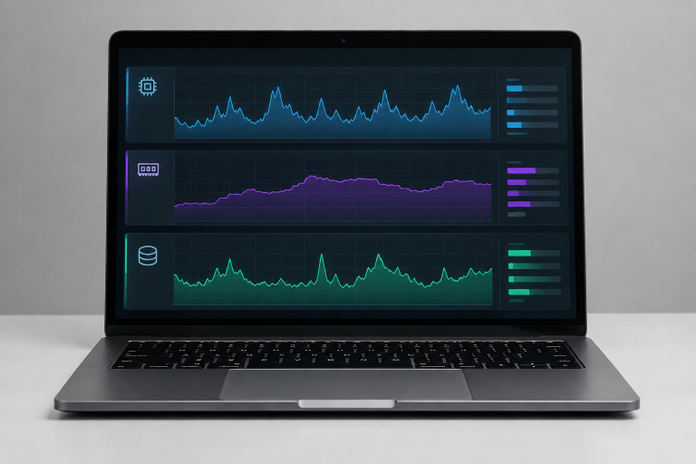
Before changing settings or buying equipment, restart the computer and observe what happens. On Windows, Task Manager can show whether a program is using unusually high amounts of processor power, memory, disk activity, or network activity. On a Mac, Activity Monitor offers similar information. This basic review can help distinguish a system-wide problem from one troublesome application.
- Restart the computer and wait for startup activity to finish.
- Check whether every program is slow or only one application.
- Review available storage space.
- Look for high CPU, memory, or disk use in the system monitor.
- Recall recent updates, downloads, or newly installed extensions.
- Test the internet connection on another device.
Simple Software Fixes to Try First
Start with low-risk maintenance steps. Close programs that are not needed, remove applications that are no longer used, and turn off unnecessary startup items. Delete old downloads and temporary files only after confirming that important documents are backed up. Install operating-system, browser, and security updates from trusted sources, then restart the computer when prompted.
Avoid downloading random “speed booster” or registry-cleaning tools in response to a slowdown. These programs can create additional problems, show misleading warnings, or install unwanted software. A careful cleanup and a security scan are usually more useful than a one-click promise to speed up a computer.
When a Hardware Upgrade May Help
Software maintenance cannot overcome every hardware limitation. An upgrade may be practical when the computer is otherwise dependable but struggles with everyday multitasking or takes too long to start up.
Potential Upgrades to Consider
- SSD installation: Replacing an older mechanical drive can improve startup and application loading times.
- Additional RAM: More memory can help users who regularly work with many tabs, large files, or video meetings.
- Cooling maintenance: Cleaning vents and inspecting fans may help a device that runs hot or becomes noisy.
- Battery replacement: A worn laptop battery may cause reduced portability or unexpected shutdowns.
Compatibility matters. Memory capacity, storage connections, physical space, and the operating system’s age should all be checked before purchasing parts.
How Malware and Unsafe Downloads Affect Speed
Unexpected pop-ups, unfamiliar browser extensions, redirected searches, new toolbars, and unknown applications can be signs of unwanted software. A message claiming a virus has been found and insisting that the user call a phone number should be treated with caution. The Federal Trade Commission warns that tech support scams often use alarming pop-ups to pressure people into sharing payment details or granting remote access.
Keep the operating system and browser updated, use unique passwords, turn on multifactor authentication where available, and download software only from trusted sources. If a serious infection is suspected, disconnect the device from the internet, avoid entering passwords, and preserve important files through a separate backup when possible.
Repair, Upgrade, or Replace?
A slow computer is a symptom, not a diagnosis. Basic troubleshooting makes sense when the slowdown is recent or limited to one program. An upgrade can be worthwhile when storage or memory is the clear bottleneck and the system remains reliable. Professional evaluation may be appropriate when the computer will not start, files are inaccessible, repeated crashes occur, or hardware failure is suspected.
Replacement becomes more reasonable when essential parts are unavailable, repair costs approach the value of a newer device, or the computer cannot run the software needed for daily tasks. Back up files before making that decision so documents, photos, passwords, and account records are not left behind on an unusable device.
Ways to Keep a Computer Running Well
A practical routine can extend the useful life of many devices. Restart regularly, keep some drive space free, remove unused programs every few months, install legitimate updates, and keep vents clear of dust. In Florida’s warm climate, avoid using laptops on bedding, cushions, or other surfaces that block airflow.
For example, a laptop that appears ready for replacement may only need storage space cleared, startup programs reduced, and a battery or fan checked. Taking time to diagnose the issue first helps Pinellas County computer users make a calmer, more informed choice about maintenance, repair, upgrading, or replacement.