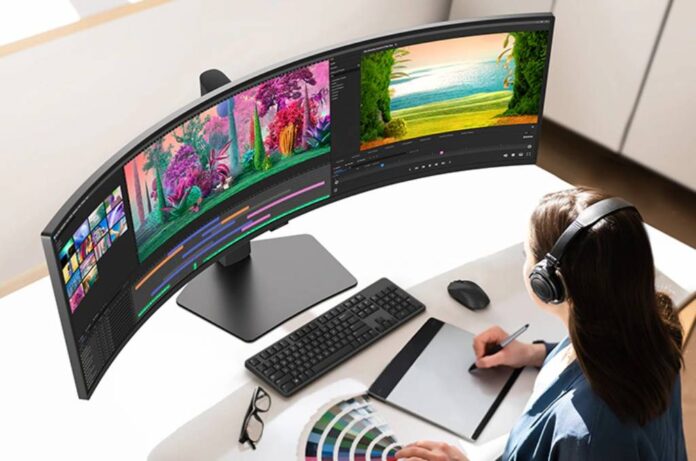

Resolution, panel type, flicker-free backlighting, and ergonomic adjustability are the monitor features that make the biggest difference to both daily output and long-term eye health.
Spend eight hours at the wrong monitor, and you will feel it – tired eyes, a dull headache, and a stiff neck by evening. The features that prevent all of that are not obvious from a spec sheet. This breaks down the ones that genuinely matter.
A slow or uncomfortable display does not just waste time; it causes headaches, eye fatigue, and posture problems that build up over months. Picking the right Computer Monitors from the start saves you from all of that.
Here is what actually matters when choosing a monitor for work and daily use, just the features with real impact.
Resolution and Screen Size: The Foundation of Visual Clarity
Higher resolution means sharper text and less eye strain for productivity work. 1440p on a 27-inch display is the sweet spot between clarity and price.
Resolution is the number of pixels your screen displays. More pixels means text looks crisper, edges are cleaner, and your eyes do less work to focus.
For general office use, 1080p on a 24-inch screen works fine. Step up to 27 inches at the same 1080p, and text starts looking soft – pixels stretch over a larger area. That is where 1440p earns its place. The sharpness difference is immediately obvious, especially in documents and spreadsheets.
4K makes sense for designers and video editors. For standard office use, it is more than you need.
Screen size matters too. A 32-inch monitor at arm’s length may force your eyes to scan more than a 27-inch one at the right distance. Match the size to your desk depth.
Panel Type: IPS vs VA vs TN
IPS panels offer the best combination of colour accuracy, wide viewing angles, and visual consistency, making them the top choice for productivity and long daily use.
Three panel types dominate the market. Each behaves differently.
IPS (In-Plane Switching) gives you accurate colours, consistent brightness across the screen, and wide viewing angles. Look at an IPS panel from the side, and colours stay true. For office work, content creation, and everyday use, IPS is the most comfortable option over long sessions.
VA (Vertical Alignment) panels produce deeper blacks and higher contrast — good for films or darker environments. Colours shift at wider angles, which becomes noticeable on larger screens.
TN (Twisted Nematic) panels are the cheapest and fastest in terms of response time, which is why they appear in budget gaming monitors. Colour accuracy and viewing angles are poor. Not ideal for work that involves reading, design, or long hours.
For most people buying a monitor for productivity, IPS is the right call.
Flicker-Free and Low Blue Light: What They Actually Do
Flicker-free backlighting eliminates rapid screen pulsing that causes invisible eye fatigue, while low blue light modes reduce the wavelengths most responsible for headaches and sleep disruption.
Most LCD monitors control brightness by rapidly flickering the backlight, faster than your eyes can consciously see, but not faster than your nervous system detects. After a few hours, this invisible flicker contributes to the tired, aching feeling behind your eyes.
Flicker-free monitors use DC dimming instead. The backlight stays constant regardless of brightness level. The difference is noticeable after long sessions – less headache, less eye pressure.
Low blue light modes reduce the blue wavelength in the display. Blue light at high intensity, particularly in the evening, disrupts sleep and adds to eye fatigue during the day. Most modern monitors include a blue light filter you can toggle on; some automatically adjust based on time of day.
Neither feature costs significantly more. Both make a measurable difference across a six-hour workday.
Refresh Rate: Does It Matter for Office Work?
For office and productivity use, 60Hz is sufficient, but 75Hz or higher makes scrolling and cursor movement noticeably smoother with no performance cost.
Refresh rate is how many times per second your screen updates. Gamers chase 144Hz or 165Hz for fast motion. For writing documents and browsing the web, 60Hz covers the basic requirement.
That said, 75Hz or 100Hz at a similar price makes scrolling noticeably cleaner. Small improvement, but obvious once you have used it. If the price gap is small, take the higher refresh rate.
Ergonomics: Adjustability That Protects Your Posture
A monitor with height, tilt, and swivel adjustment lets you position the screen correctly for your body, reducing neck strain and back fatigue during long work sessions.
The right spec in the wrong position still causes problems – monitor ergonomics matter more than most buyers realize.
Height adjustment lets you align the top of the screen with eye level, the correct position to avoid neck strain. Tilt adjustment angles the screen slightly back so you are not craning forward. Swivel lets you turn the display without shifting your whole desk setup.
Fixed stands lock you into one position. If it does not suit your desk or chair, you sit wrong for years. An adjustable stand costs a little more and solves a very common problem.
Quick Reference: Which Features Matter Most for Your Use Case?
The right monitor features vary by how you use your screen, but flicker-free backlighting and an IPS panel are non-negotiable for anyone spending long hours at a display.
| Feature | Office / Study | Design / Creative | General Daily Use |
| Resolution | 1440p preferred | 4K ideal | 1080p minimum |
| Panel type | IPS | IPS | IPS or VA |
| Flicker-free | Essential | Essential | Recommended |
| Low blue light | Recommended | Recommended | Useful |
| Refresh rate | 60–75Hz | 60Hz | 60–75Hz |
| Ergonomic stand | Important | Important | Useful |
The monitor is the one component you look at every single working hour. Buying on price alone and ignoring these features is a trade-off that costs you in comfort and focus every day you use it.