
When you put your computer to Sleep mode, you expect it to pause your work and resume instantly when you wake it up. However, sometimes your computer may shut down unexpectedly instead of entering sleep mode. This can be frustrating, especially if you lose unsaved work or face delays restarting your system.
Fortunately, several troubleshooting methods are available that you can try to fix such sudden system shutdown issues on your device. In this article, we’ll explore the causes and step-by-step solutions to Fix Computer Shutting Down When Put to Sleep. Let’s get started!
Understanding the Sleep vs Shutdown Issue
Before jumping to different solutions, it’s important to understand the difference between sleep and shutdown:
Sleep Mode: Putting your computer in sleep mode saves your current session in RAM and uses minimal power.
Shutdown: When you shut down your computer, it closes all programs and turns off the system entirely.
Hibernate Mode: This option saves your session to disk and powers off completely.
If your system is shutting down instead of sleeping, it may be switching to hibernate mode or encountering an error during the sleep transition.
Why Your Computer Shut Down Instead of Sleeping?
Such sudden shutdowns on Windows laptops and desktops are typically caused by incorrect power settings, outdated drivers, BIOS misconfigurations, or underlying hardware issues. Identifying the exact cause helps you to determine adequate repair workarounds. Some main reasons include:
Incorrect Power Settings
Incorrect power plan settings can misconfigure sleep behaviour, causing the system to shut down unexpectedly instead of entering proper sleep mode.
Fast Startup Conflicts
Fast Startup conflicts with system power states, sometimes forcing the computer to shut down completely instead of transitioning smoothly into sleep mode.
Outdated or Corrupted Drivers
If the drivers on your Windows device get outdated or corrupted, it can disrupt communication between hardware and software and lead to improper sleep functionality and unexpected system shutdowns.
BIOS or Firmware Issues
BIOS or firmware issues may interfere with power management settings, preventing the system from entering sleep mode and causing shutdown instead.
Battery-Related Problems
Battery-related issues in laptops, such as degraded health or loose connections, can cause sudden shutdowns when switching to sleep mode.
How do I Fix Sudden Shut Down Issues on Windows Computer?
Here are some quick and easy fixes that you can try to fix your computer shutting down unexpectedly when putting it to sleep mode:
Method 01: Configure Power Settings on Windows PC
As mentioned above, your Windows computer might shut down due to incorrect power configuration. In such a case, you can follow the below steps to adjust these power settings on your PC:
- Launch Control Panel, go to Power Options > Change plan settings.
- Select Change advanced power settings and then expand Sleep.
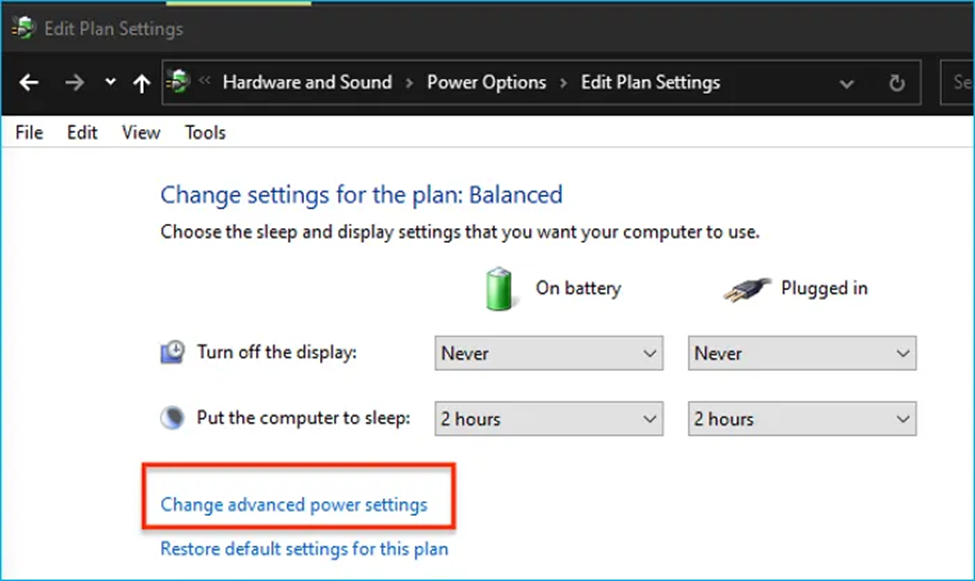
- Ensure:
- Sleep after option is set to a reasonable time (not “Never” if you’ve to put your device to sleep).
- Hibernate after is set to a higher value or is disabled.
- Also, disable the Allow hybrid sleep option for troubleshooting.
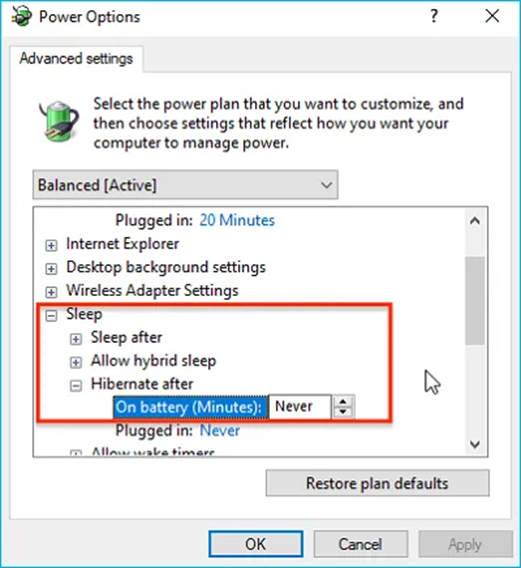
- Once done with these changes, click Ok to save the changes and restart your computer.
Method 02: Disable Fast Startup
Fast Startup is a feature designed to reduce boot time, but it can interfere with sleep functionality. If the Fast Startup option conflicts with sleep states, especially on systems with driver or firmware inconsistencies, it may cause unexpected system shutdowns.
You can turn off the Fast Startup option on your Windows PC to check if this resolves the issue. For this:
- Launch Control Panel, go to Power Options.
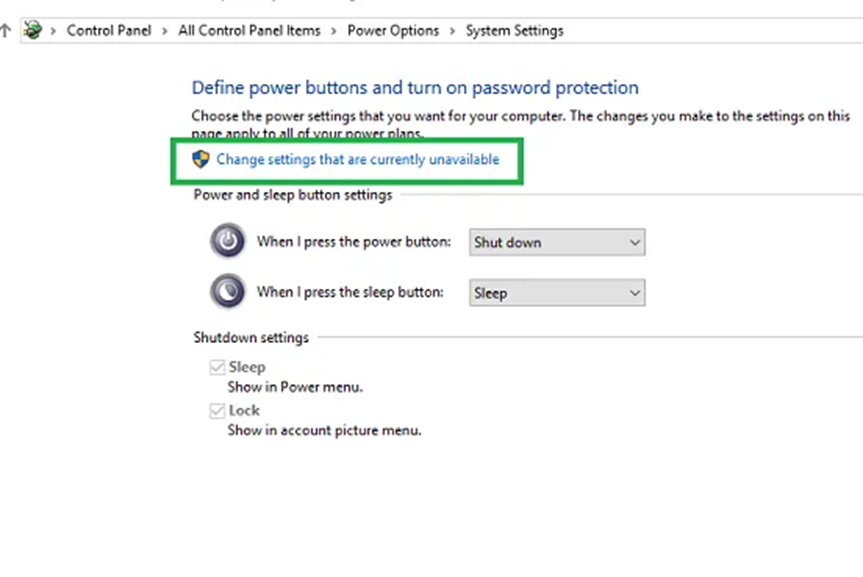
- Select Choose what the power buttons do.
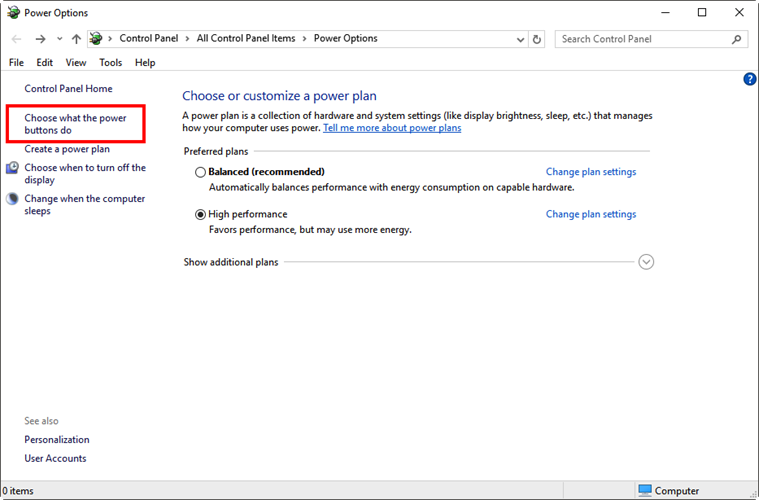
- Now, click on Change settings that are currently unavailable.
- Uncheck the Turn on fast startup option.
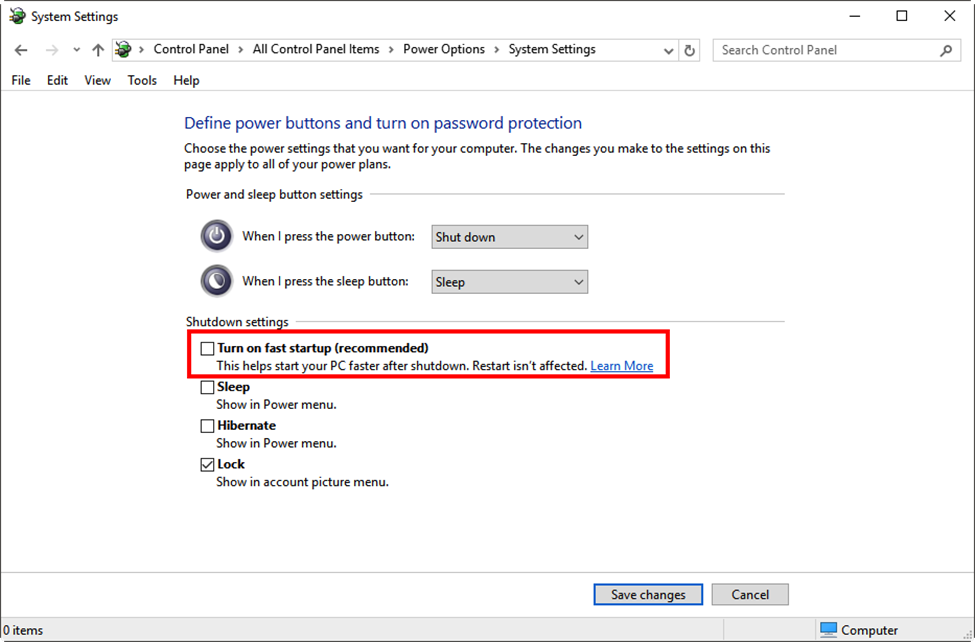
- Save the changes and then restart your PC.
Method 03: Update or Reinstall Drives
Sometimes it’s the outdated or incompatible drivers, especially graphics and chipset drivers, installed on your Windows PC, which result in sleep failures. You can follow the steps below to update or reinstall these drivers on your computer:
- Press Windows + X and then open Device Manager.
- Expand Display adapters and Network adapters.
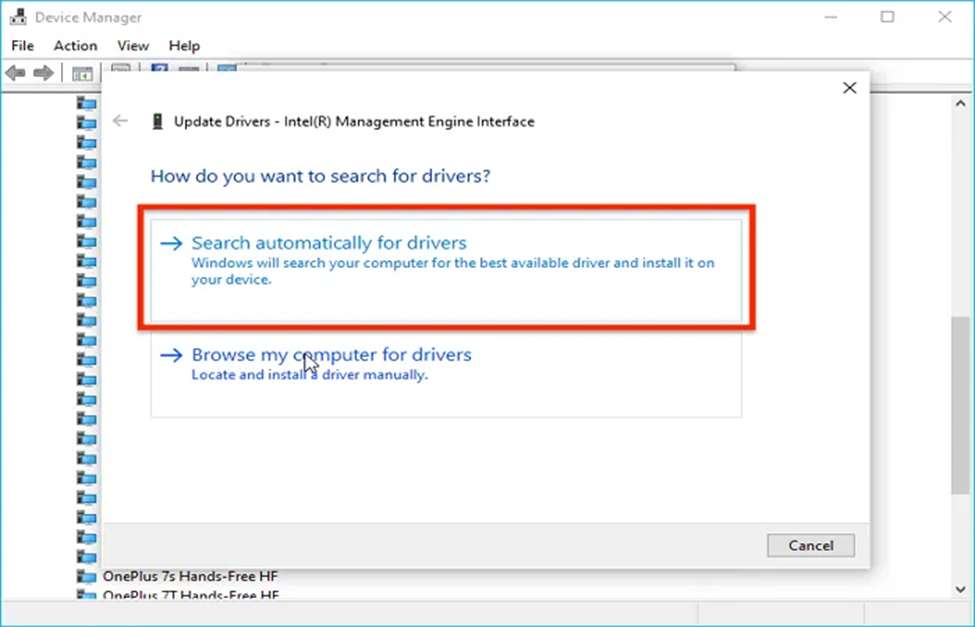
- Right-click on each device and select Update driver.
- Select “Search automatically for drivers.”
Alternatively, uninstall and reinstall the driver.
Note: Always download the drivers from the manufacturer’s official website for better compatibility.
What If Data Loss Occurs Due to Sudden Computer Shut Down?
A computer shutting down instead of going to sleep can be annoying, especially if your important files and folders get deleted. If you have ever experienced data loss issues on your Windows PC due to its shutting down instead of going to sleep mode, it’s important to immediately proceed with adequate recovery workarounds. In such cases, you can use previously created backups or try third-party free data recovery software like Stellar Data Recovery Free to restore your lost files.
- The Stellar Data Recovery Free software lets you restore deleted files up to 1 GB for free, which is sufficient for most basic recovery needs.
- It allows you to recover data deleted from hard drives, SD cards, USB drives, and many other internal or external storage media.
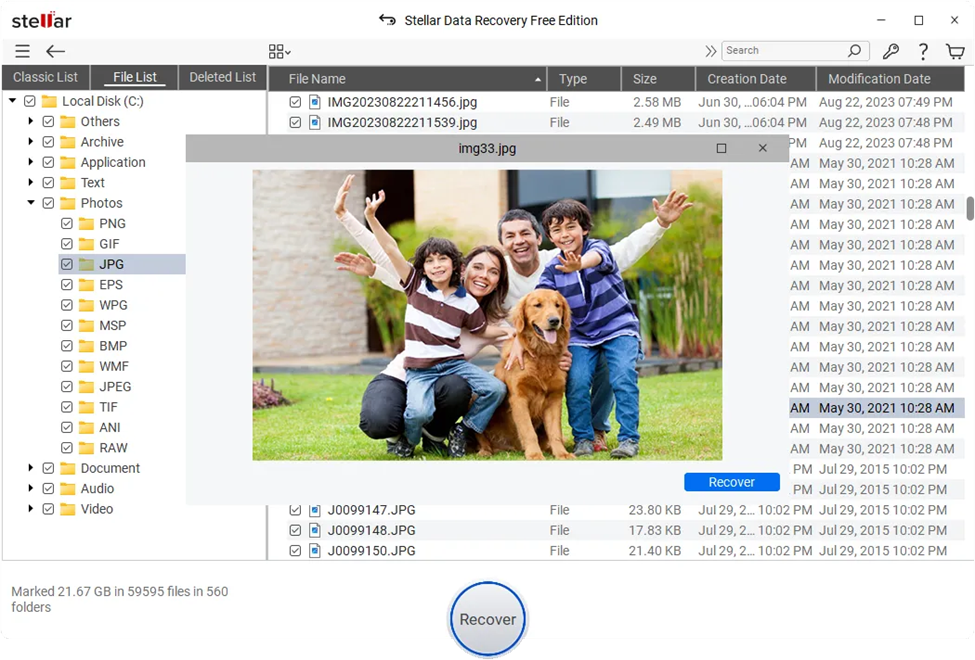
- This free data recovery software also lets you preview the recoverable files before saving them on your device.
- The software is mainly known for its simple and beginner-friendly interface, which makes the recovery process easy even for non-tech users.
- It offers both Quick scan and Deep scan options to find recently deleted files as well as those lost due to complex reasons.
Here’s how to recover files deleted from a computer shutting down unexpectedly using this professional free data recovery software:
Step 1: Visit the official Stellar website and download the Stellar Data Recovery Free software. Install it on your system, but avoid installing it on the same drive where deleted data was earlier stored.
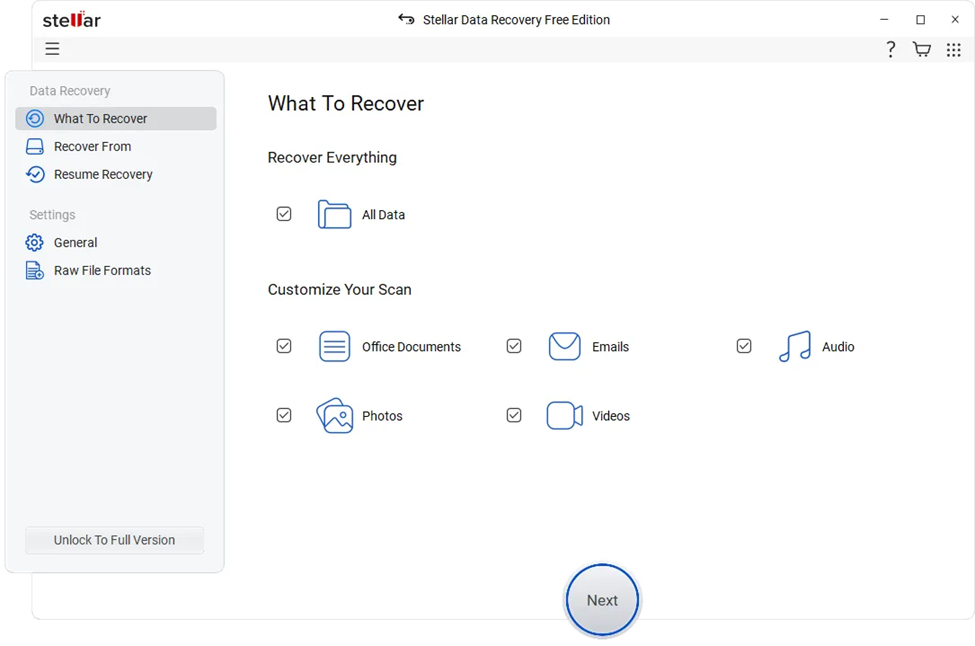
Step 2: After installation, launch the software on your Windows PC. From the home screen, select the type of data you want to recover and click Next to continue.
Step 3: Now, choose the storage drive where your deleted data was earlier stored and click Scan to initiate the scanning process. If your files are not found, you can enable Deep Scan for more thorough results.
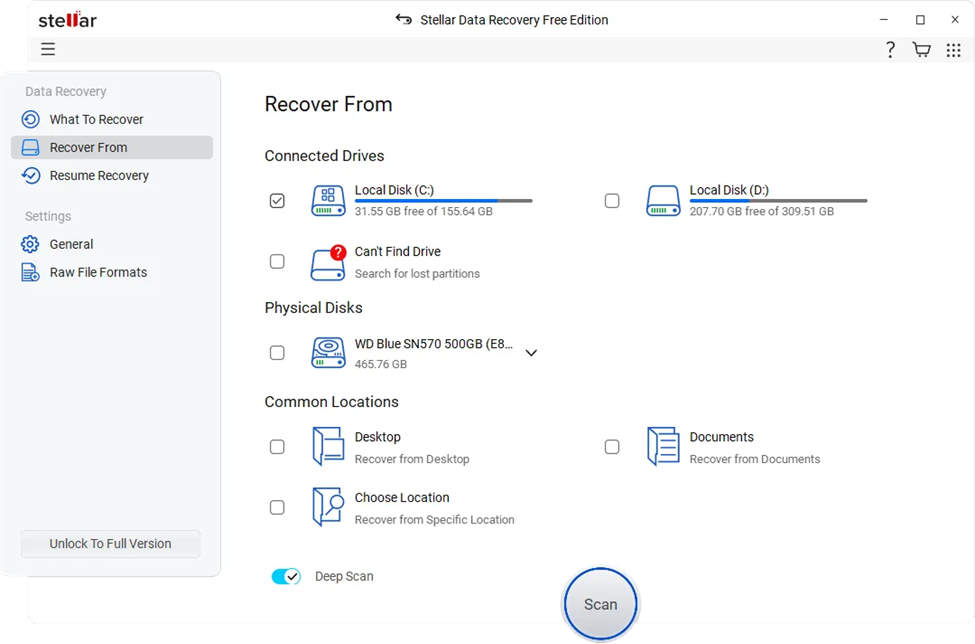
Step 4: Once the scan is complete, you’ll see a list of recoverable files. The software allows you to preview files before recovery. Choose all that you want to restore and click Recover to save them back to your PC.
Important Tips for Better Recovery
Recovering deleted files using the Stellar Data Recovery Free software is quite easy. You can also consider the following tips to improve your chances of successful recovery:
Act quickly: The sooner you attempt recovery, the higher the success rate.
Avoid overwriting: Do not save new data on the affected drive.
Use deep scan if needed: It helps recover deeply buried or corrupted files
Save files externally: Use a USB drive or another partition to save the recovered files on your PC.
Conclusion
Unexpected system shutdown while putting it to sleep can put you in trouble, but such issues are usually fixable. The issue often stems from incorrect power settings, driver conflicts, or system-level glitches. By following the aforementioned solutions one by one, you can easily fix the issue and prevent your system from shutting down while putting it to sleep. Moreover, you can consider tips like maintaining regular system updates, driver maintenance, and proper hardware care to prevent such issues in the future.