

PDF converter tools online are services that convert files from and to PDF format through the web, without installing any software. They typically support documents in Word, Excel, PPT, images, and occasionally HTML.
Many of them now manage batch files, file compression, and simple edits. Readers care most about speed, file size limits, privacy, and output quality.
The following parts summarize essential functions, typical dangers, and how to choose a trustworthy tool.
Choosing Your Tool
The decision begins with your personal workflow and appetite for risk. Know what you require first, then relate it to the tool rather than the other way around.
Key criteria to compare:
- Free versus premium plans and actual limits (pages, size, features)
- Web access and an optional desktop app for heavy or sensitive work.
- Availability on Windows, macOS, Linux, iOS, Android, and browsers
- Strong security (SSL/https, good privacy policy, short file retention)
- Batch speed and uptime for large volumes
- Output quality and stable formatting
- Clear interface and low learning curve
See if a service provides a free online tier for quick and easy work and a paid tier or desktop version for big or complicated jobs. For heavy workloads or compliance-heavy industries like finance, legal, and healthcare, a desktop converter typically makes more sense because it keeps files local and provides greater control over updates, storage, and access.
1. Core Functionality
Your tool selection should fit your actual file flow. At least, the converter should support popular formats like DOCX, XLSX, PPTX, JPG, PNG, etc. It should also export to those when necessary.
If you’re frequently handling entire folders of contracts or reports, shop for batch conversion and queue control. Speed and reliability become more important once you enter the hundreds of files range. Powerful extras like compress, merge, split, and rotate all in one spot save time since you don’t need to hop between tiny one-off tools.
Because loss of formatting is the classic issue, try it out with a tough sample—tables, images, headers, links—and compare the output before you entrust the tool to daily work. Always back up important files before any major run.
2. User Experience
Easy, labeled pages minimize mistakes, even for less tech-savvy teammates. Uploading, converting, and downloading should be seamless.
Drag-and-drop and progress feedback eliminate guesswork. Instant preview allows you to detect broken fonts or layout shifts prior to distributing the document. Browser-based tools with no install are convenient on shared or locked-down machines.
3. Security Measures
Whatever online converter you choose must use SSL with strict https and you should be able to see that in the browser address bar. See if the provider says they are GDPR compliant, how long they store files, and whether they log IPs or doc names.
For confidential work or hard compliance requirements, favor desktop software since transferring sensitive files over to third-party servers will always introduce some risk, regardless of how robust the assurance sounds. Stay away from tools with fuzzy privacy pages, dated breach reports, or no transparent deletion policy.
4. Format Support
Wide format support keeps you from juggling many small tools. Look for input and output across office formats, image types, and niche files such as XPS, PRN, EMF, and WMF if your sector still uses legacy systems.
Complex layouts with charts, multi-page tables, and vector graphics are the real test, so run sample files and compare each page. Read the provider’s supported formats list line by line and match it to both what you use now and formats your partners or clients send.
5. Advanced Features
OCR support is key if you want searchable PDFs instead of flat images, since scanned paperwork is still ubiquitous. Pro editing in the browser or desktop app—headers, footers, page numbers, watermarks, and notes—can stand in for a dedicated PDF editor for many teams and reduce license expenses.
For cloud-based workflows, integration with Google Drive, Dropbox, or OneDrive is a help, as are direct links for fast sharing on collaboration platforms. Developers or power users who script tasks should look for an API or command-line support, and it is worth keeping an eye on updates, as new builds will add formats, faster engines, and better OCR over time.
The Conversion Process
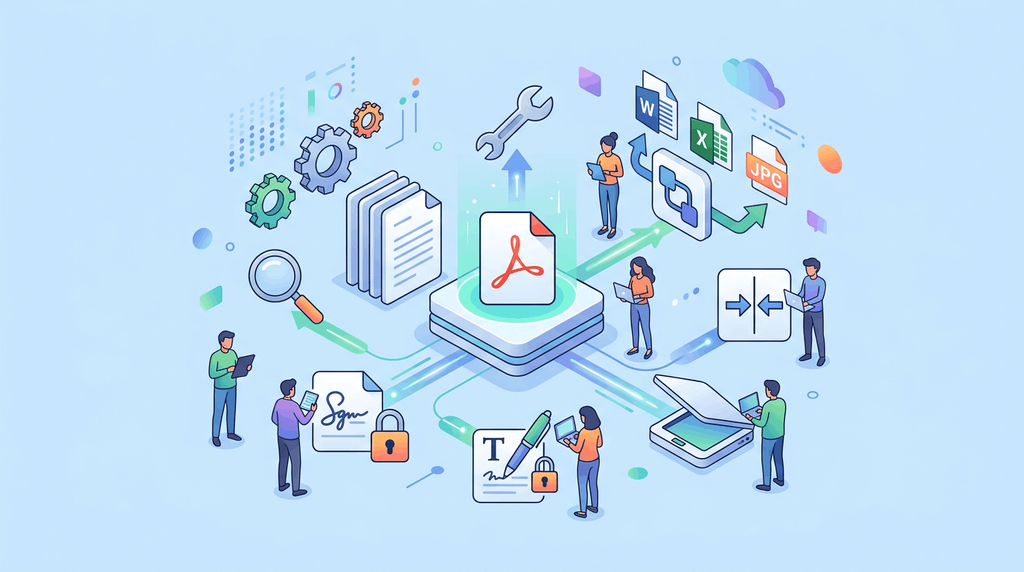
Online PDF converters follow a simple chain: upload, pick an output format, run the change, then download. How well this works depends on how you prepare files, respect limits, and check results.
File Preparation
Good prep comes before you hit upload. By grouping related files in obvious folders and, if your tool supports batch upload, batching them in logical groups, such as one batch per client, report, project, or similar, rather than a hodgepodge.
Be sure to rename files to something that will still make sense after conversion. A brief pattern, such as clientA_contract_v2.docx or Q4_sales_2026.xlsx, makes it much simpler to correlate each output PDF to its origin, particularly if the site delivers back one ZIP file.
Scrub each file first. Strip out blank or draft pages, extra slides or unused images so the converter has less to convert, which tends to mean quicker jobs and smaller PDFs that are easier to send around.
For recurring tasks, employ templates. A locked slide master, a canonical invoice layout, or a letterhead file keeps fonts, margins, and logo placement static, which gives the converter less opportunity to misinterpret your layout.
Quality Control
Once downloaded, open each one and look for broken lines, shifted images, or missing charts or tables that wrapped badly. Be particularly careful with headers, footers, and page numbers.
Leave the original open side by side. Click through a couple of sample pages and then any data-heavy sections to confirm if lists, captions, and links remained intact.
Almost all the tools provide compression, DPI, or font options. Experiment with small trials at various settings to find the right trade-off between file size and crisp text and legible images.
A short checklist helps with fonts, margins, images, tables, links, page count, and any digital signatures or form fields you need to keep.
Common Pitfalls
Many problems repeat, so keep a “do not” list: do not upload the only master copy, do not ignore page count changes, and do not skip a quick open and scroll review before sharing.
Free versions tend to limit page counts, file size, or batch jobs or block features like OCR or password‑protected exports. Schedule around these constraints for time‑sensitive work.
Look out for upload caps, formats that aren’t supported or slow servers at peak times when you transmit large scans or heavy slide decks.
Some services watermark, promo pages, or extra branding, which can be an issue in client-facing or legal files. Be sure to check the first and last pages.
Data Security
Data security determines how secure using any online PDF converter is. Every upload, click, and download can potentially compromise content, which means that every tool you employ should demonstrate how it safeguards your files and data.
Encryption
Encryption keeps your PDFs unreadable to outsiders as they travel between your device and the converter’s servers. Check for ones that employ 256-bit SSL (https and lock) for uploads and downloads, not just the homepage. Robust transport encryption reduces the chance of snooping on public Wi-Fi, a shared office network, or hotel hotspot.
For confidential material, such as contracts, pay slips, or medical records, add another layer: password-protect the PDF before upload when possible, and re-encrypt the final file after you download it. While lots of services provide built-in password protection, local tools typically provide tighter control.
Desktop PDF converters can encrypt files without transmitting them to a server, which prevents online exposure and means everything remains firmly under your control. See if your provider encrypts data in transit and at rest on its servers. If an otherwise reputable site doesn’t disclose its encryption standards or display even the most elementary security indicators, consider it a red flag.
Fake “free online file converters” have been used to distribute malware such as the ArechClient2 info stealer. Rely on trusted names, official domains, and highly-rated applications, not arbitrary search results. There’s some risk involved in uploading sensitive documents to a third-party server.
When security regulations are stringent or internal compliance is strict, a trusted desktop converter may be more secure and simpler to fit into IT policies.
Retention Policies
How long a converter stores your files on its servers is as important as how it encrypts them. For daily use, opt for services that delete source and output files within hours or, at most, a couple of days. Most decent tools claim that they delete files automatically after processing or after a small fixed window.
Verify whether you can induce immediate deletion after downloading or via a “delete” button. That’s helpful if you deal with confidential or regulated information, such as legal documents or customer reports.
If retention controls are vague or you don’t see any reference to deleting, assume that those files could remain on the server beyond your comfort level.
Stay away from services and tools that keep files around forever or that talk about sharing data with partners or advertisers. Persistent storage increases the attack surface with time, particularly if you handle thousands of documents a day.
In those high-volume environments, a desktop converter or on-premise solution typically provides a more reliable and secure route since documents never exit your own infrastructure.
User Privacy
User privacy isn’t just about your PDFs. It’s about how much personal data the service collects about them. For simple conversions, it’s more secure when you don’t have to register, provide an email address, or consent to extensive tracking. The provider saves less information that might be exposed afterwards.
Peruse the privacy policy, even if you skim it. Watch for explicit language that the provider does not read, search, analyze, or sell your document content, and respects your data rights under GDPR and/or local regulations. If the verbiage is ambiguous or the company claims the right to use your content for any purpose, that’s a good reason to walk away.
Online PDF converters are susceptible to cyber attacks as they receive large files from users. This is yet another reason not to upload extremely private data, such as scans of IDs or bank statements, to mysterious sites.
When the stakes are high, a secure desktop tool, whether a locally installed converter or an approved corporate solution, fits better with internal IT compliance checks, access controls, and audits.
If you suspect a system was hit by malware after using a shady converter, act fast. Disconnect the device from networks, change passwords from a clean device, contact your banks or card providers, and report the case to the relevant authorities or your internal security team.
Beyond Basic Conversion
Okay, online PDF tools are now full document hubs, not one-off converters. The real magic is in how they manage editing, search, speed, scale, and security across numerous file types, including Word, Excel, Google Slides, and more.
OCR Technology
OCR converts scanned pages or image files into live text you can copy, edit, and search. This becomes invaluable when you encounter printed contracts, signed forms, or handwritten notes that enter your process as images or flattened PDFs.
The better tools offer batch OCR, so you can drop in a folder of scans and get back searchable PDFs in one pass. Precision counts for more than you might think. New, AI-powered OCR engines read mixed fonts, tables, columns, and even non-standard layouts while preserving most of the formatting.
Other services run in the cloud, so you can upload from Google Drive, process online, and return results to the same folder without manual intervention. Searchable output is where OCR pays off in the long run. Once text is indexed, you can search across hundreds of pages, tag files, and integrate them into your document management system.
When you do this at scale, speed and reliability are key, and you want strong security controls such as encryption, GDPR aligned, SOC 2 grade, and the whole sensitive data shebang.
Batch Processing
Batch processing means you can convert dozens or hundreds of files at a time rather than single jobs. This is a lifesaver if you deal with big archives, monthly reports, or client packs that come around every week.
Cutting-edge tools include automation, like rules that monitor a folder or an email inbox and then transform, rename, and route documents with no human intervention. The same batch logic typically applies to merge, split, and compress actions as well.
You can combine multiple PDFs into a single report, split large files into packages for different teams, and reduce file sizes for email or shared drives while still attempting to maintain readable quality. Once you choose a platform, consider caps on file count, total size per batch, and whether free plans restrict features like OCR, bulk actions, or cloud sync.
Other services integrate with Gmail or other email clients, so attachments convert as they come in. Coupled with cloud storage links, this results in easy workflows where staff just have to drop files in the right location, not figure out new software.
File Editing
With direct, in-browser editing, you skip the step of moving PDFs into a desktop word processor and then back again. Several new converters allow you to edit text, replace images, and rearrange or remove pages within the same online window you performed the conversion.
You get quick actions like compress, rotate, or crop, which are important when you’re priming files for print or client review. Beyond simple conversions, collaboration features have become commonplace in more expensive services.
Multiple users can comment, highlight important clauses, and eSign the same PDF, even in real time. A few of them do version control, tracking every change and storing an audit trail, which comes in handy for legal work or rigorous compliance environments.
Security is still a fundamental aspect of this layer. Professional-grade platforms provide encryption at rest and in transit, role-based access, and configurations to comply with local data regulations.
Export options complete the workflow, so you can save the edited file as a PDF again or send it out as a Word document, Excel spreadsheet, or even Google Slides, depending on how the next person likes to work.
The Freemium Model
Online PDF converters often use a freemium model. Core tools stay free, while advanced or heavy use sits behind a paywall. This assists users in sampling features with real workflows but alters what you can and cannot do without paying.
The free plans typically offer basic convert-to-PDF and PDF-to-Word/Excel, light compression, and simple page manipulation, such as merge, split, and rotate. Paid plans open up higher file limits, batch jobs, OCR, improved layout accuracy, robust security options, and integrations with cloud storage or office suites.
Others provide free credits per day or month. Others provide time-limited trials of all premium features. Premium memberships include perks such as priority servers, no ads, brand-free output and multi-user controls.
The key question is whether basic, slow, or limited use suffices for you or if your work truly demands the fast, high-quality, controlled access of paid access.
Free Tiers
Free tiers fit light, simple work: converting a few invoices to PDF, merging two files, or shrinking one report under an email limit. Many sites allow you to simply drag a file into the browser, receive the output instantly, and walk away without an account, which is ideal for infrequent or one-time jobs.
Limits are the compromise. Maybe two to five files per day, no bigger than ten to twenty-five megabytes each, or a queuing method that slows you down when their servers are busy. Others watermark converted files or prevent use of critical features like OCR or password protection until you cough up the cash.
That may seem sufficient for individual usage, but it becomes exasperating in a professional position where layout fidelity or tidy branding is important.
Free trials and promo credits occupy the middle space. They unlock the full feature set, including batch conversion, better OCR for scans, or stronger encryption, for a limited period so you can trial real workflows before you subscribe.
For a lot of users, this ‘try before you buy’ phase is where they discover whether the free tier was really enough after all or only appeared that way initially.
Paid Subscriptions
- Higher or no daily limits on files and pages
- Larger file sizes, plus bulk and batch conversion
- OCR with better accuracy for scanned documents
- Stronger encryption, access control, and audit trails
- Faster processing, fewer queues, and no ads
- Integrations with cloud drives and office tools
- Central admin, billing, and permissions for teams
Paid plans are important when you work with massive or complicated files, heavy security restrictions, or collaborative workflows. A solo freelancer may select a monthly plan when in between projects, while a legal team, finance department, or distributed agency might opt for a yearly or enterprise plan that reduces the price per user and includes shared folders or team templates.
The business part is not easy. Providers have to pay to keep free users on servers while praying that a sufficient number of them market up. If too many people remain in the free tier, it runs the risk of being a loss leader. If limits seem too tight, they will leave before paying. If they are too generous, they will never get a chance to upgrade.
The Future of Documents
The future of documents is going to involve tools that operate in the background, secure files, and reduce manual effort. Online PDF converters are in the middle of this transition as they connect old formats, new apps, and multiple devices.
Expect continued growth of online pdf conversion services and digital tools
Online PDF converters will continue to grow as more work moves into the browser. Folks want instant, no-install utilities that work on any connected device. A freelancer could convert client slides to PDF on a communal laptop. A worldwide team, for example, can transform one product sheet into multiple PDFs for partners.
Growth will come from niche tools: converters for forms, academic papers, legal bundles, invoices, and design proofs. They will each provide presets, such as standard page sizes, tagged PDF for screen readers, or ready-to-print layouts. This growth will not replace desktop software. Many users will use the browser first and open local apps only when heavy editing is needed.
Anticipate better integration with cloud, mobile, and office platforms
Integration will matter more than raw speed. Online converters will hook deeper into cloud drives, email, and chat tools so files flow without additional uploading or downloading. A user could convert a shared slide deck to a locked pdf directly from a cloud folder or store a scanned receipt from phone into a tax workspace in a single action.
Mobile apps will sync settings across devices so you can start a batch convert on your laptop and check the results on your phone. Office platforms will introduce ‘convert and share as pdf’ routes within team hubs with roles and access rights already defined.
Look for improvements in OCR, batch processing, and security features
OCR will move from “good enough text” to close-to-editable. Converters will do a better job with low-light scans, handwriting, math, and mixed languages in one file. A researcher could scan old lab notes in two languages and still search across them.
Batch tools will grow more flexible. Users will queue hundreds of files, mix input types, set file naming rules, and run scheduled jobs at night. On the security side, come default encryption, stronger password rules, and link-based sharing with time limits and watermarks.
Certain tools will provide region-based storage or provide logs of who opened what PDF when, which aids audits in regulated industries.
Prepare for new file formats, smarter automation, and universal access across devices
New formats and smarter flows will make PDF feel less rigid. Dynamic docs might merge PDF’s permanence with live content blocks that siphon updated information from other platforms. A sales PDF might display pricing that updates when a catalog changes, yet still allows the team to lock essential pages.
Automation will tie converters to triggers: when a contract reaches “approved” in a workflow tool, it turns into a signed PDF, gets tagged, and moves to a records folder. Low-code rules will allow non-technical staff to mold these flows. Universal access will increase as well.
They’ll want that same converter to work in a browser, as a mobile app, and as a plug-in inside other tools. Offline modes will allow folks to indulge on trains or flights and synchronize later. In most cases, the converter will seem like part of the file system, not a site.
With this, document work could move away from “open, convert, save” to straightforward rules that run behind the scenes and maintain files prepared for search, sharing, and archival.