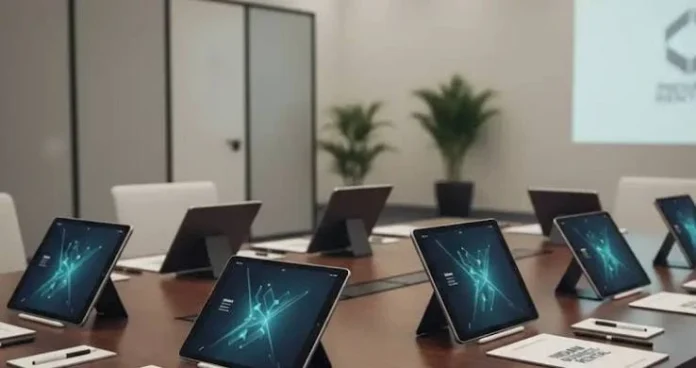

Tablet hire for public events typically includes device management software that locks each unit to a single app, remote tracking so lost or stolen tablets can be located, passcode or biometric protection, and a full wipe of all data before and after the event. Suppliers also apply asset tags for tracking and configure content filtering so members of the public can’t wander outside the intended app or website. These features exist because public facing tablets are handled by strangers all day, often with minimal supervision, which creates a different risk profile than office equipment used by known staff.
Anyone organising tablet hire for a public facing event needs to think about security differently than they would for an internal meeting or office rollout. A tablet sitting at a registration desk, survey station, or interactive display gets touched by hundreds of people who have no relationship with your organisation, and that changes what protection actually needs to look like.
Why Public Events Carry Different Security Risks
Office equipment sits with staff who have a reason to look after it. Public event tablets don’t have that safety net. Anyone walking past a stand can pick one up, and depending on how busy the event is, nobody may notice for several minutes. That gap is exactly what device security features are built to close.
There’s also a data angle beyond simple theft. A tablet collecting names, emails, or survey answers from the public needs to prevent anyone from backing out of the intended app and poking around settings, photos, or other data on the device. Locking a tablet to one purpose protects both the hardware and whatever information it’s collecting.
Core Security Features Included With Tablet Hire
Most reputable suppliers build a standard security package into every public event booking, though the exact combination depends on what the event actually needs.
A well-run supplier such as The Tekk Group typically configures rented tablets with mobile device management software before they ever leave the warehouse, applying restrictions and tracking settings that match the specific event rather than sending out a generic setup and hoping it fits. Getting this briefed properly before delivery matters more than most organisers expect, since retrofitting security after tablets are already deployed at a live event is far harder than setting it up in advance.
Below is a breakdown of the features most commonly included, though it’s always worth confirming exactly what’s covered before signing off on a booking.
1. Single App Mode (Kiosk Mode)
This locks the tablet to one specific app, so a visitor can’t press the home button and wander into settings, other apps, or the device’s photo library. It’s the single most requested feature for registration desks, surveys, and product demos.
2. Remote Tracking and Locking
If a tablet goes missing, remote tracking software can pinpoint its last known location, and in most cases the device can be locked or wiped remotely to protect any data stored on it.
3. and Biometric Protection
Even within a locked down single app setup, an additional passcode or fingerprint requirement adds a layer of protection if a tablet is removed from its stand or mount unexpectedly.
4. Data Wipe Before and After the Event
Every tablet should be wiped clean before it arrives and again after it’s returned, so no data from a previous booking lingers on the device and nothing collected at your event stays on it afterward.
Comparing Security Features by Event Type
| Event Type | Priority Feature | Why It Matters Most |
| Registration desks | Single app mode | Prevents access to guest lists or settings |
| Trade show demos | Remote tracking | High foot traffic raises theft risk |
| Public surveys | Data wipe cycle | Protects respondent privacy between sessions |
| Unattended kiosks | Physical mounting plus lock | No staff nearby to intervene quickly |
| Outdoor festivals | Asset tagging and tracking | Larger crowds and less consistent supervision |
Setting Up a Secure Tablet Deployment: Step by Step
1. Confirm exactly what the tablets will be used for, since this determines which app or website they’ll be locked to.
2. Brief your supplier on single app mode requirements before delivery, not after tablets arrive.
3. Ask whether remote tracking and remote wipe are included as standard or as an add-on.
4. Decide whether tablets need physical mounts or stands to prevent casual pickup and walking off.
5. Confirm a passcode or biometric lock is active even within the locked down app.
6. Request written confirmation that a full data wipe happens before delivery and after collection.
Common Security Gaps Organisers Overlook
Most security failures at public events come down to assumptions rather than genuinely faulty equipment. Organisers often assume a feature is switched on because it was mentioned once during initial conversations with a supplier, without ever confirming it in writing or seeing it demonstrated on the actual units delivered.
● Assuming single app mode is automatic without confirming it during booking
● Leaving tablets unmounted at unattended stations where anyone can simply walk off with one
● Not asking whether Wi-Fi settings and passwords were cleared from the previous event
● Skipping insurance or loss cover conversations until after something goes missing
● Assuming staff will supervise devices constantly during a long or busy event day
Key Terms Worth Knowing
Mobile device management (MDM): software that lets a supplier remotely configure, restrict, track, and wipe tablets from a central system rather than adjusting each device by hand.
Kiosk mode: another term for single app mode, where a tablet is locked to run only one designated application.
Asset tagging: physically or digitally marking a device with a unique identifier so it can be tracked and matched back to a specific booking or location.
Other Equipment Often Hired Alongside Tablets for Events
Events using tablets for registration or demos frequently need other hardware running behind the scenes at the same time. A company handling attendee data might rent a laptop for business use at a back office desk, while front of house staff work from a separate rent a laptop for events booking to manage check-ins and live updates. Larger organisations sometimes bundle this together with a wider corporate laptop rental covering staff laptops for the whole event, alongside the public facing tablets, since booking everything through one supplier usually makes delivery, security briefing, and collection simpler to manage.
Frequently Asked Questions
1. Can rented tablets be locked to just one app for public use?
Yes, this is called single app mode or kiosk mode, and it’s one of the most commonly requested features for public facing tablet hire.
2. What happens if a tablet is lost or stolen at an event?
Most suppliers include remote tracking and the ability to lock or wipe the device remotely, reducing the risk of data exposure even if the hardware isn’t recovered.
3. Is data wiped from tablets between different hire bookings?
Reputable suppliers wipe every tablet before and after each booking, so no data from a previous event or client carries over to the next hire.
4. Do I need to request security features separately, or are they included by default?
This varies by supplier, so always confirm what’s included as standard versus what needs to be requested specifically during the booking process.
5. Can tablets be password protected even in kiosk mode?
Yes, a passcode or biometric lock can usually be layered on top of single app mode for an extra level of protection.
6. What’s the best way to prevent tablets from being picked up and walked off with?
Physical mounts or stands, combined with staff supervision where possible, are the most effective way to reduce casual theft at busy events.
7. Does tablet hire include insurance for loss or damage?
Some suppliers include basic cover as standard, while others offer it as an add-on, so it’s worth clarifying this before the event rather than assuming.
8. Are public Wi-Fi networks a security risk for hired tablets?
They can be, particularly if a tablet isn’t restricted to specific apps, so combining single app mode with a secured network reduces exposure significantly.
Final Thoughts
Security for public facing tablets isn’t about one single feature doing all the work, it’s about layering a few simple protections, single app mode, tracking, passcodes, and proper data wiping, so that a busy public event doesn’t turn into a data or hardware headache. Getting these details briefed clearly before delivery makes far more difference than dealing with a problem after tablets are already out on the floor.
The Tekk Group builds these protections into public event bookings as standard practice, configuring each device around what the event actually needs rather than sending out generic units and hoping for the best. A short conversation before booking is usually all it takes to make sure the right security features are in place from day one.